
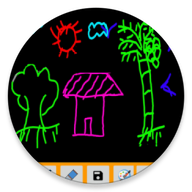
Magic Slate
Draw app for Android · Free, with an ad-free Pro version
A clean canvas that never runs out of paper. Doodle an idea, sketch properly, or teach a child to write — switch colour, brush and eraser in a tap, and let it auto-save while you work. Everything stays on your phone.
- Auto-save
- Works offline
- Free & Pro
- Kid-friendly
About Magic Slate
Magic Slate is the ng-labs drawing board: a blank sheet that opens the moment you tap the icon, with the tools sitting where you expect them and nothing else in the way. Over five million people have installed it.
It is deliberately simple. There is no canvas setup, no project list and no sign-in — you open the app and draw. Switch between colours and brush sizes from a single bar, reach for the eraser when a line goes wrong, or clear the whole slate and start fresh. Whatever is on screen is saved as you work, so coming back to the app picks up exactly where you left it.
That simplicity is why it gets used for teaching. Parents and teachers use Magic Slate for handwriting practice and early drawing, because a child can wipe the board and try again as many times as they like without getting through a pad of paper. It is equally at home as a scratchpad for adults — sketching a rough diagram is faster here than opening a full drawing app.
Everything happens on the device. Magic Slate does not collect personal information and your drawings are not uploaded anywhere.
What Magic Slate does
An endless sheet
Wipe the slate and start again as often as you like — no files to manage, no exports to remember.
Colours and brushes in a tap
Change colour, brush size or switch to the eraser without hunting through menus.
Auto-save
Your work is kept as you draw, so a phone call or a flat battery doesn't lose it.
Good for teaching
Parents and teachers use it for handwriting practice — paperless, mess-free and endlessly repeatable.
Works offline
No connection needed and no account to create. Open the app and draw.
Light on the phone
Built to stay quick on older devices, not just on this year's flagship.
How to use Magic Slate
Three steps from installing it to getting something out of it.
- 1
Install Magic Slate from Google Play and open it — there is nothing to set up first.
- 2
Pick a colour and a brush size from the bar, then draw straight onto the slate with your finger or a stylus.
- 3
Use the eraser for small fixes, or clear the slate to start over. Your last drawing is saved automatically.
Version & requirements
- Package name
- com.ng_labs.magicslate
Permissions & data
Magic Slate does not collect personal information, and nothing you create in it is uploaded. The free version shows ads, delivered by Google AdMob.
Full privacy policy →Magic Slate questions
What is the difference between Magic Slate and Magic Slate Pro?
The features are identical. Pro has no ads and supports continued development.
Does Magic Slate work without an internet connection?
Yes. Drawing works entirely offline and nothing is uploaded.
Is Magic Slate suitable for young children?
It is widely used for handwriting practice. For a version built specifically for children, see Kids Paint.
Is Magic Slate free?
Yes, the free version is the complete app. The Pro version removes the ads.